Validated on Kipper CLI 0.37.0, 29 October 2026, using a temporary project on the demo cluster.
Start with the path the request takes
In post 01 we looked at desired state and reconciliation. In post 02 we mapped the platform components. This time we use them to investigate a failure.
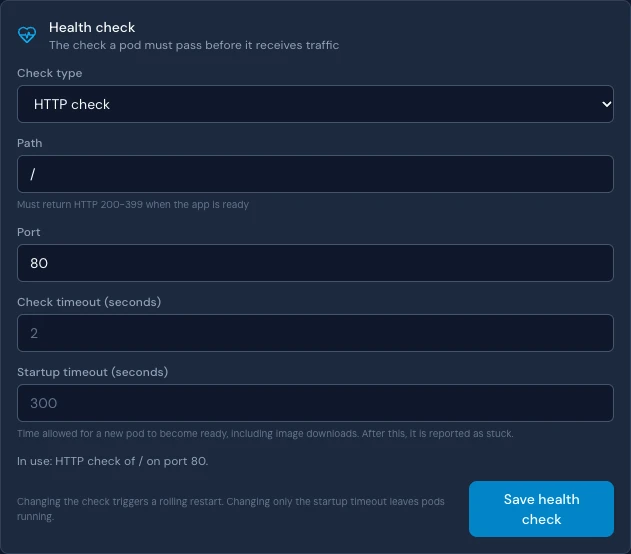
The sample is nginx, serving its default page on port 80. We explicitly keep its readiness check on port 80, then change Kipper’s app port to 8080. That models a common configuration mistake: the health endpoint works, but the traffic path points somewhere else.
The health check still reaches port 80. Public traffic is forwarded to port 8080, where nothing is listening.
Kipper puts an instance proxy alongside the application container. The public request travels through Traefik and the Kubernetes Service to that proxy, which forwards it to the configured app port. The readiness check in this lab connects directly to nginx on port 80.
Prepare a small, separate lab
Use a test Kipper cluster with Loki, Prometheus, and Grafana enabled, a current CLI, and an account that can create projects and open Grafana. Monitoring is included on profiles above nano. Check the component state below before starting.
The commands use a Bash-compatible terminal on macOS or Linux with curl. Choose an unused project name: this walkthrough uses routing-lab with a test environment, creating the namespace routing-lab-test.
kip --version
kip cluster list
# Use the exact name of your test cluster from the list.
export KIP_CLUSTER='YOUR_TEST_CLUSTER'
kip platform status
kip project create routing-lab --environments test
Keep KIP_CLUSTER set in this terminal throughout the lab. If monitoring is disabled, use the observability setup instructions first. Cluster admins can open Grafana. Other users need a monitoring grant.
Prove the URL works before breaking it
kip app deploy --name web \
  --image nginx:1.28.0-alpine --port 80 \
  --health http --health-path / --health-port 80 \
  --project routing-lab --environment test
The two port flags serve different purposes. --port 80 tells Kipper where application traffic belongs. --health-port 80 tells Kubernetes where to run the readiness check. Neither flag changes nginx’s own listening configuration.
Open the app in Kipper’s console under routing-lab → test → Apps → web. Wait for the rollout to finish and the app to show ready. Copy its HTTPS URL, then request it:
# Copy the app's HTTPS URL from Kipper without a trailing slash.
export APP_URL='https://YOUR_APP_HOST'
curl --silent --show-error --max-time 10 \
  --output /dev/null --write-out 'HTTP %{http_code}\n' \
  "$APP_URL/?lab=baseline"
Continue when this prints HTTP 200 and the browser shows nginx’s welcome page. This establishes that the hostname, certificate, route, and application worked together before the next change.
Change one thing: the traffic port
kip app deploy --name web \
  --image nginx:1.28.0-alpine --port 8080 \
  --health http --health-path / --health-port 80 \
  --project routing-lab --environment test
This updates the same Kipper App. nginx still listens on 80, and the explicit readiness check still targets 80, but the instance proxy now forwards application traffic to 8080. Wait for the rollout to finish before collecting evidence.
date -u '+%Y-%m-%dT%H:%M:%SZ'
for i in $(seq 1 12); do
  curl --silent --show-error --max-time 10 \
    --output /dev/null --write-out 'HTTP %{http_code}\n' \
    "$APP_URL/?lab=wrong-port"
  sleep 5
done
After the rollout settles, the expected response is HTTP 502. The twelve requests, with a five-second pause after each, give us a short time window to examine in the logs and metrics. The query string lab=wrong-port marks our requests.
If you see another status, keep it as evidence. A 404 suggests a different route or hostname problem. A 503 can mean the backend has no ready endpoints. A connection or TLS failure happens before an HTTP response. Investigate the observed symptom rather than forcing it into this example.
A green status is a starting point
In the console, check the app’s rollout and ready replicas, then open its Logs tab. In Settings → Health check, compare the health-check port with the --port value in your deployment command. You can inspect status and application logs from the CLI too:
kip app list --project routing-lab --environment test
kip app info web --project routing-lab --environment test
kip app logs web --tail 30 --project routing-lab --environment test
The readiness check can be successful while requests fail: it is checking / on port 80. nginx may keep logging successful health-check requests. Those requests do not prove the public path works.
kip app logs reads the application container’s logs. The failing connection in this scenario happens in a different container: Kipper’s instance proxy. That is why we widen the investigation to the pod’s logs in Loki.
Find the hop that cannot connect
Open Grafana from Kipper’s sidebar. In Explore, choose the Loki data source, switch to Code, and select the time range containing your failing requests. Start with the namespace and app:
{namespace="routing-lab-test", app="web"}Inspect the container label on the returned lines. Narrow the query to the instance proxy and its connection errors:
{namespace="routing-lab-test", app="web", container="kipper-instance-proxy"} |= "proxy error"Look for proxy error, port 8080, and connection refused in the same line. That is stronger evidence than a generic “bad gateway”: the proxy attempted a connection to the configured port and the connection was refused.
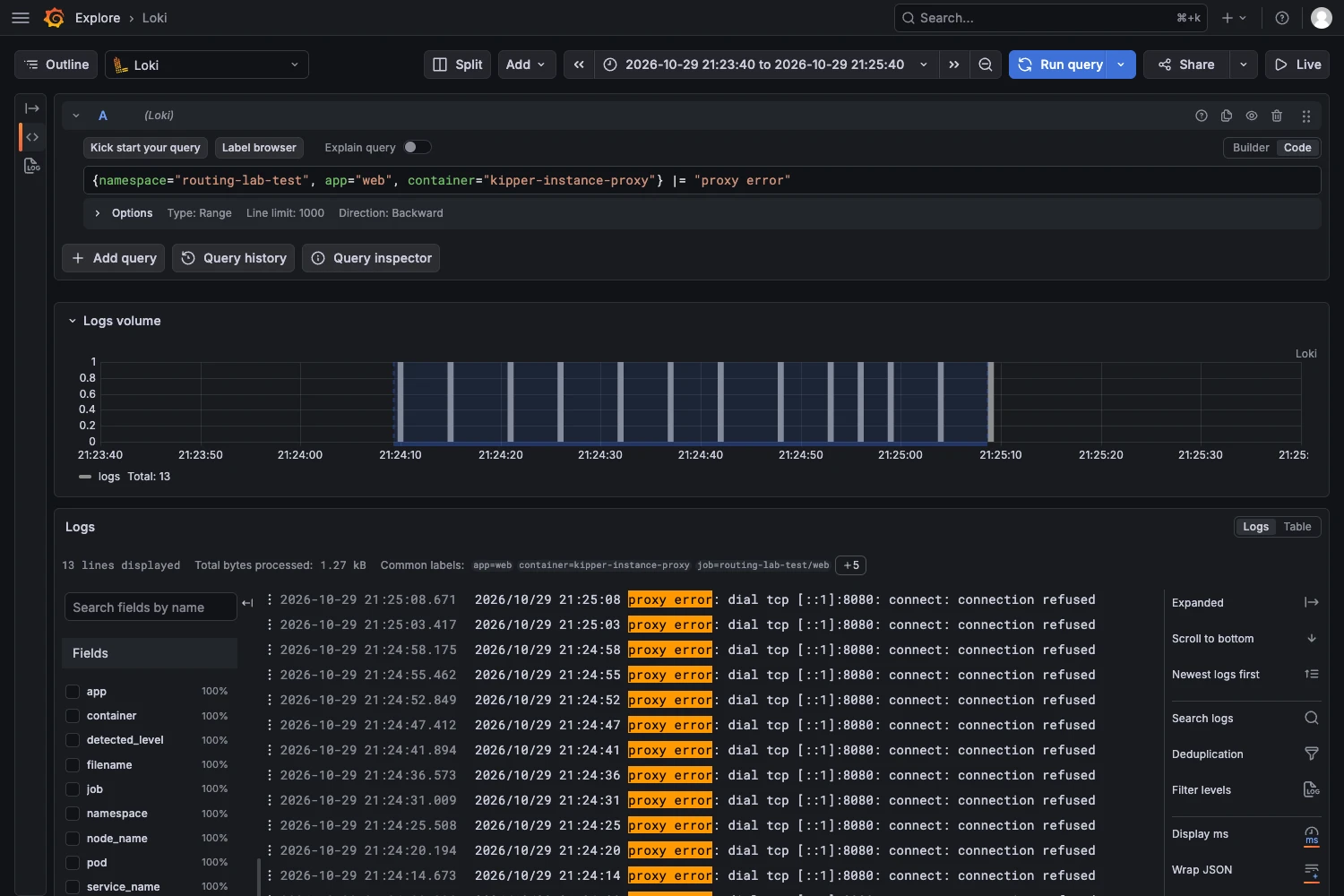
Now compare the nginx stream:
{namespace="routing-lab-test", app="web", container="web"} |= "lab="The baseline requests reached nginx. The failed requests should not appear there because the proxy could not connect to nginx. Absence alone is not proof: first make sure the selector and time range include known baseline logs. Combined with the proxy’s connection error, it helps locate the failing hop.
|= keeps lines containing a case-sensitive string. Start broad enough to see the relevant containers, then narrow the search.Measure the impact in the same time window
In Grafana Explore, select Prometheus. Use the same time range and run this query in the graph view:
sum by (code) (
  increase(traefik_service_requests_total{
    exported_service=~"routing-lab-test-web-.*"
  }[5m])
)
traefik_service_requests_total is a counter. increase(...[5m]) estimates its increase over each five-minute window. sum by (code) groups the result by HTTP status. Fractional values are normal because Prometheus extrapolates between scrapes.
The selector includes both the working and broken service names, whose port suffix changes during the lab. Look for 502 responses during the fault and new 200 responses after recovery. The metrics show the impact. The proxy logs explain the connection failure.
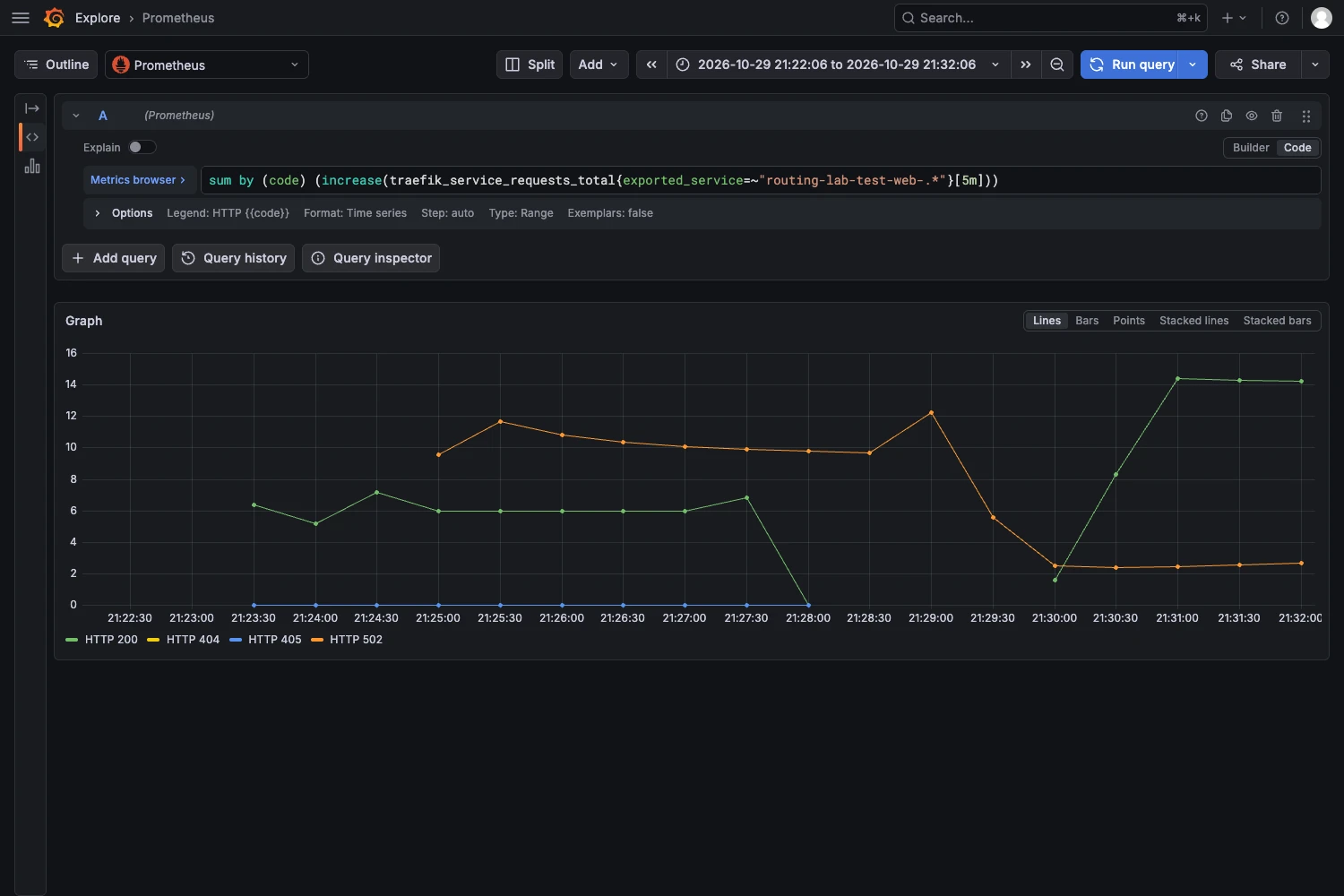
No data? Check the labels before changing the application.
Allow time for scraping, confirm the time range, and inspect traefik_service_requests_total in the metric browser. Kipper’s default scrape stores the routed backend name in exported_service. A scrape configured with honorLabels: true retains it in service. Use this variant only if that matches the labels you see:
sum by (code) (
  increase(traefik_service_requests_total{
    service=~"routing-lab-test-web-.*"
  }[5m])
)
Do not interpret an empty result as zero errors. Confirm that you are querying the right time series first.
You can also open Dashboards → Kubernetes / Compute Resources / Namespace and select routing-lab-test. CPU and memory provide context when testing a resource-pressure hypothesis. Normal resource graphs do not establish that a route is correct.
Test the hypothesis, then fix the source
Use Kipper’s shell command to compare the two listeners from inside the application container:
kip exec web --project routing-lab --environment test -- \
  sh -c 'wget -S -O /dev/null http://127.0.0.1:80/; wget -S -O /dev/null http://127.0.0.1:8080/'
Port 80 should answer. Port 8080 should refuse the connection. The command exits with an error because the second request deliberately tests the port where nothing is listening. You now have three pieces of evidence: the configured traffic port, the proxy’s refused connection, and a working listener on a different port.
Correct the Kipper App configuration by redeploying with port 80:
kip app deploy --name web \
  --image nginx:1.28.0-alpine --port 80 \
  --health http --health-path / --health-port 80 \
  --project routing-lab --environment test
This is the desired state from post 01. Let Kipper reconcile the Service and workload. Editing a generated Kubernetes Service would leave the App configuration wrong, so a later reconciliation could undo that manual fix.
Wait for the rollout to finish, then repeat the public request:
for i in $(seq 1 12); do
  curl --silent --show-error --max-time 10 \
    --output /dev/null --write-out 'HTTP %{http_code}\n' \
    "$APP_URL/?lab=recovered"
  sleep 5
done
Confirm repeated HTTP 200 responses, search nginx’s logs for lab=recovered, and check for new proxy errors. Keep the original failure window available for comparison.
A five-minute graph still includes earlier failures immediately after the fix. Look for new successes and no new errors, then let the window move beyond the incident. Verify the fix by repeating the user’s operation and checking the logs and metrics.
What the live run showed
| Stage | App / health port | Ready | Public request |
|---|---|---|---|
| Baseline | 80 / 80 | 1/1 | HTTP 200 |
| Wrong port | 8080 / 80 | 1/1 | 12 of 12: HTTP 502 |
| Recovered | 80 / 80 | 1/1 | 12 of 12: HTTP 200 |
Loki contained the marked baseline and recovery requests in the nginx stream, with no marked wrong-port requests there. The proxy stream contained the refused connections. The same selectors and Prometheus query shown above were used for the captures.
Clean up the lab
Save the observations you want to keep, then remove the dedicated tutorial project. This deletes its environments and workloads:
kip project delete routing-labKeep exploring
- Kipper: health checks and rollouts
- Kipper: Loki, Prometheus, and Grafana
- Loki: log selectors and filters
- Prometheus: how increase() works
Built from the operational work behind Kipper by Labb Consulting.